How to verify your website
Verifying your website proves that you own or manage it, and unlocks higher scan limits and additional settings.
Why verify?
Verification is optional but recommended. Without it, scans are limited to a smaller number of pages and requests. Once verified, your limits are significantly increased and you unlock additional scan settings — including higher thread counts for faster scans and increased page and request limits.
Getting to the verification page
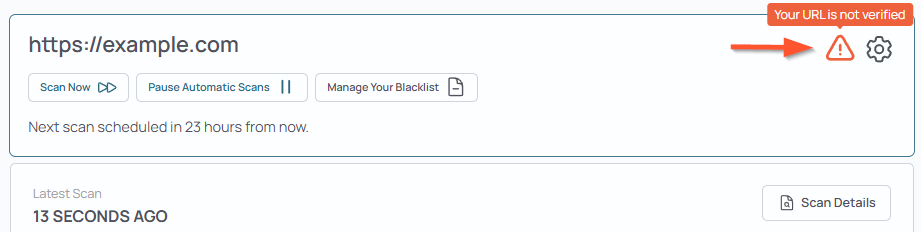
The verification page appears automatically after you add a new website. If you skipped it at the time, you can return to it at any time by clicking the orange exclamation mark icon next to your website in the dashboard.
How verification works
dislike404.com verifies ownership by checking for a small text file on your server. You create the file, add your unique verification code, upload it to your website, and then trigger the verification check from your dashboard.
The file must remain on your server as long as you want your website to stay verified. If the file is removed, your website may lose its verified status on the next check.
Step 1 — Create the verification file
Create a new plain text file and name it exactly:
dislike404-verification.txt
Step 2 — Add your verification code
Open the file and paste your personal verification code into it. Your verification code is displayed directly on the verification page. Each website gets its own unique code.
Step 3 — Upload the file
Upload the file to the root directory of your website. Once uploaded, it must be publicly accessible at one of the following URLs:
https://yourdomain.com/dislike404-verification.txt
https://www.yourdomain.com/dislike404-verification.txt
Step 4 — Verify
Once the file is uploaded, click the Verify button at the bottom of this page. dislike404.com will check for the file and confirm your ownership. If everything is in order, your website will be marked as verified immediately and your first scan will start automatically.
Troubleshooting
If verification fails, check the following:
The file name is exactly
dislike404-verification.txt— no extra spaces, no.txt.txtThe file is uploaded to the root directory, not a subfolder
The file is publicly accessible — try opening the URL in your browser
The verification code in the file matches exactly what is shown in your dashboard
If your website uses a CDN or caching, it may take a few minutes for the file to become accessible